The third delivered slice brings image uploads to the lesson editor. Authors click the toolbar button, pick a file, see a live status bar as it uploads to Backblaze B2, and the resulting Markdown image syntax drops right into the editor at the cursor position. No manual hosting, no copy-paste URLs.
What was built
The Instructor can now:
- Click the image toolbar button in the lesson editor to open the native file picker
- Select JPG, PNG, GIF, or WebP files up to 5 MB
- See an inline status bar below the toolbar while the upload is in progress — a spinner with “Uploading image…”
- On success, the bar turns green with a checkmark and “Uploaded!” — auto-dismisses after 5 seconds
- On failure, it turns red with the error message — auto-dismisses after 8 seconds
- The image is uploaded server-side to Backblaze B2 on a public bucket, and the resulting Markdown
is inserted at the cursor position in the textarea
The upload is fully automatic — the file streams to the server as soon as it’s selected, no form submission required. The only user action is picking the file.
Upload flow
sequenceDiagram
actor Author
participant Browser as LiveView Client
participant LV as LessonLive.Edit
participant UC as ImageUploadLive
participant B2 as Backblaze B2
Author->>Browser: Click image button
Browser->>Author: File picker opens
Author->>Browser: Select photo.jpg
Browser->>UC: phx-change "noop" → upload_status :uploading
UC-->>Browser: Status bar: spinner + "Uploading image…"
Browser->>LV: auto-upload chunks
LV->>UC: handle_progress (each chunk)
UC->>UC: consume_uploaded_entries
UC->>B2: upload_image(path, "lessons/{uuid}.jpg")
B2-->>UC: {:ok, "https://cdn.example.com/lessons/abc123.jpg"}
UC->>LV: {:image_uploaded, url, name}
UC->>LV: {:upload_status, :success}
LV->>Browser: push_event("insert-markdown", "")
UC-->>Browser: Status bar: green checkmark + "Uploaded!"
Note over UC,Browser: Auto-dismiss after 5 seconds
The key insight: auto_upload: true on the allow_upload/3 spec means the client starts streaming file chunks the moment a file is selected. The server-side handle_progress/3 callback receives progress updates and, when entry.done?, consumes the temp file and ships it to B2. The status bar updates trigger immediately via send(self(), ...) messages to the parent LiveView.
Component architecture
flowchart TB
    subgraph Parent["LessonLive.Edit (parent LiveView)"]
        direction LR
        UI["handle_info({:image_uploaded})
→ push_event insert-markdown"]
        NOTIF["handle_info({:upload_status})
→ assign upload_notification"]
        DISMISS["handle_info(:clear_upload_notification)
→ assign upload_notification nil"]
    end

    subgraph Component["ImageUploadLive (LiveComponent)"]
        direction TB
        MOUNT["update/2
→ allow_upload(:image)
auto_upload: true"]
        NOOP["handle_event('noop')
→ notify_parent(:uploading)"]
        PROG["handle_progress(:image, entry)
→ consume_uploaded_entries
→ Skilll.Storage.upload_image"]
        SEND["notify_parent(socket, status)"]
    end

    subgraph Storage["Storage Layer"]
        B2S["Skilll.Storage.B2
Req → b2_authorize_account
Req → b2_get_upload_url
Req → upload + SHA1"]
    end

    Component -->|send :upload_status| Parent
    Component -->|send :image_uploaded url| Parent
    PROG --> Storage
    Storage --> PROG

    style Component fill:#FAEEE3,stroke:#A14A2A
    style Parent fill:#E4ECDA,stroke:#4A6B3E
The upload concern is fully extracted into a LiveComponent (SkilllWeb.ImageUploadLive). Every parent LiveView that needs image uploads drops the component in and handles two callbacks: {:image_uploaded, url, name} (the image URL) and {:upload_status, status, message} (the status bar). The component owns allow_upload, handle_progress, consume_uploaded_entries, B2 storage, and validation errors.
The reusable API is three lines in the parent:
def handle_info({:upload_status, status, message}, socket) do
{:noreply, SkilllWeb.ImageUploadLive.handle_notification(status, message, socket)}
end
def handle_info({:image_uploaded, url, name}, socket) do
{:noreply, push_event(socket, "insert-markdown", %{markdown: ""})}
end
def handle_info(:clear_upload_notification, socket) do
{:noreply, assign(socket, :upload_notification, nil)}
end
Status bar feedback
The status bar is an inline element that sits between the toolbar and the textarea, matching the design system’s Status Bars pattern from notifications.html:
| State | Visual | Colors | Auto-dismiss |
|---|---|---|---|
| Uploading | mm-spinner + “Uploading image…” | paper-100 bg, clay spinner | Until done |
| Success | Checkmark SVG + “Uploaded!” | moss-100 bg, moss-600 border | 5 seconds |
| Error | X SVG + message | rust-100 bg, rust-600 border | 8 seconds |
The bar uses a CSS transition on max-height, padding, and opacity for a smooth expand/collapse animation. The “Uploading” state triggers immediately when the file is selected (via phx-change on the upload form), not waiting for the first progress callback — so feedback is instant.
.mm-status-bar {
  display: flex;
  align-items: center;
  justify-content: space-between;
  padding: 7px var(--sp-4);
  border-bottom: var(--border);
  background: var(--paper-100);
  font-size: 13px;
  color: var(--ink-700);
  transition: max-height 250ms ease, padding 250ms ease, opacity 200ms ease;
}

.mm-status-bar.success {
  background: var(--moss-100);
  border-bottom-color: var(--moss-600);
  color: var(--moss-600);
}

.mm-status-bar.error {
  background: var(--rust-100);
  border-bottom-color: var(--rust-600);
  color: var(--rust-600);
}
Screenshots
Lesson editor with upload toolbar
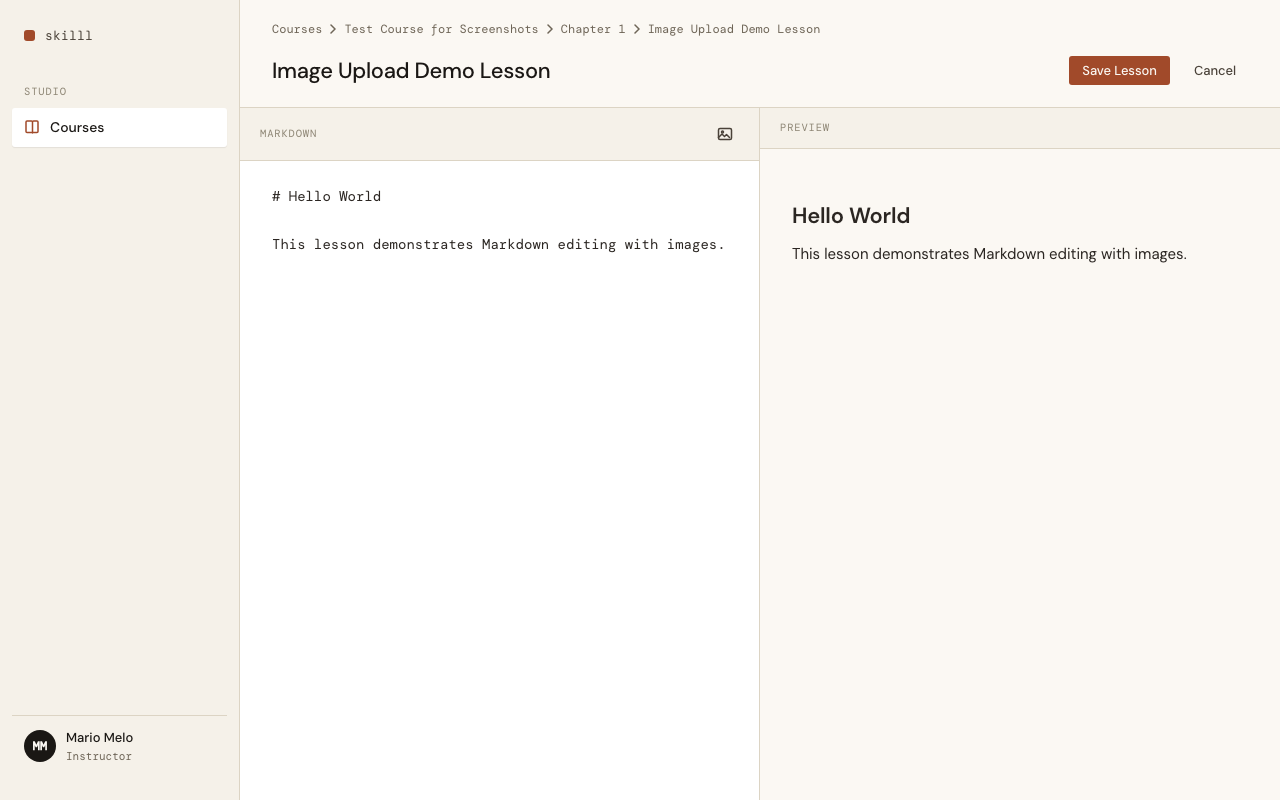
The image upload button (mountain icon) sits in the Markdown pane toolbar. Clicking it opens the native file picker.
Uploading — status bar with spinner
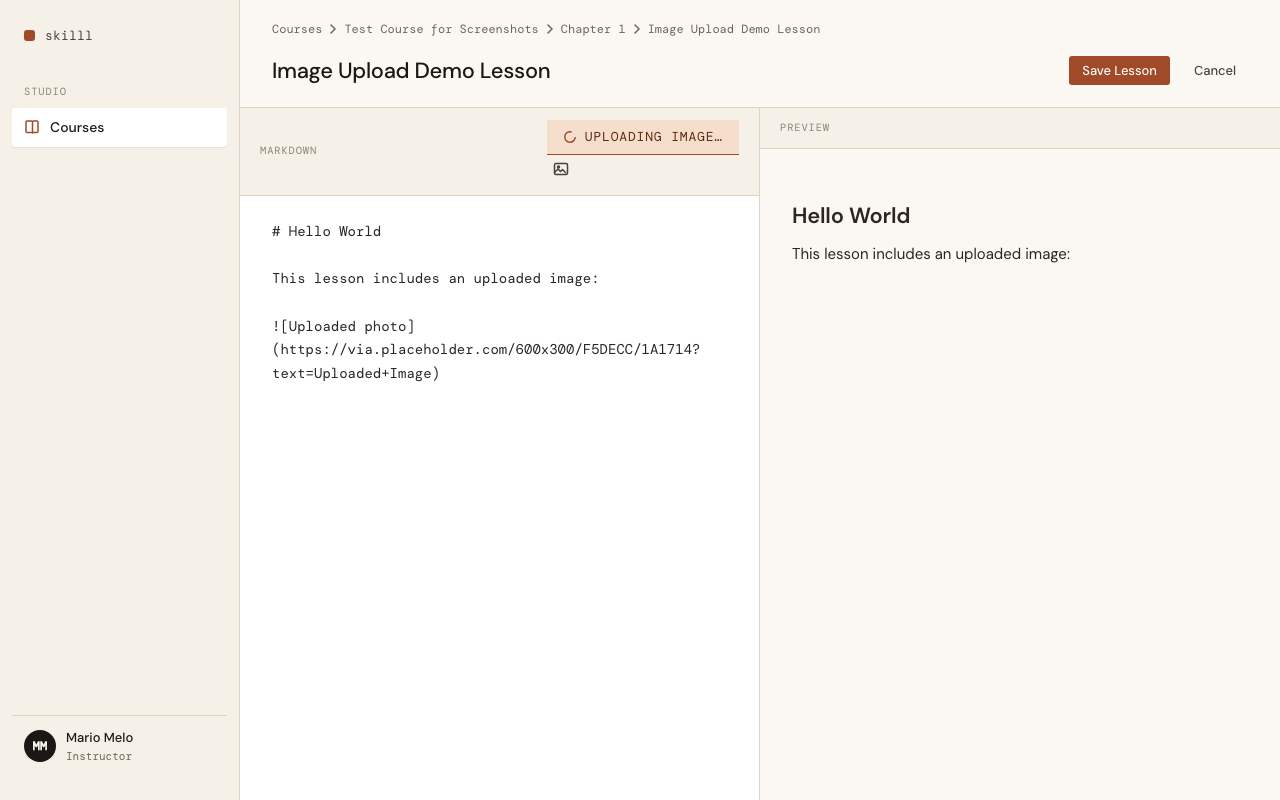
Immediately after file selection: an inline status bar expands below the toolbar with a spinner and "Uploading image…". The bar uses the design system's clay accent for the spinner.
Upload complete — green status bar
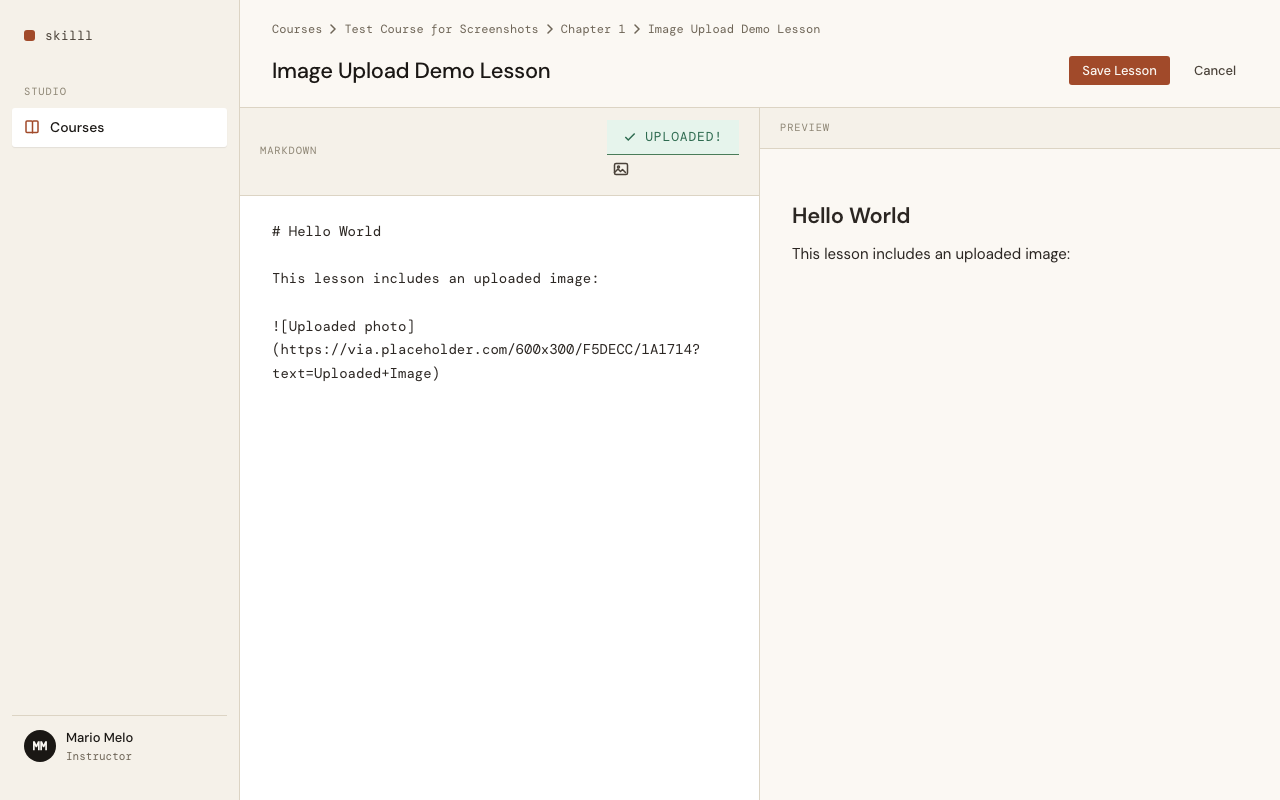
On success: the bar turns moss green with a checkmark and "Uploaded!". The image URL is already inserted into the Markdown textarea. Auto-dismisses after 5 seconds.
Uploaded image in preview
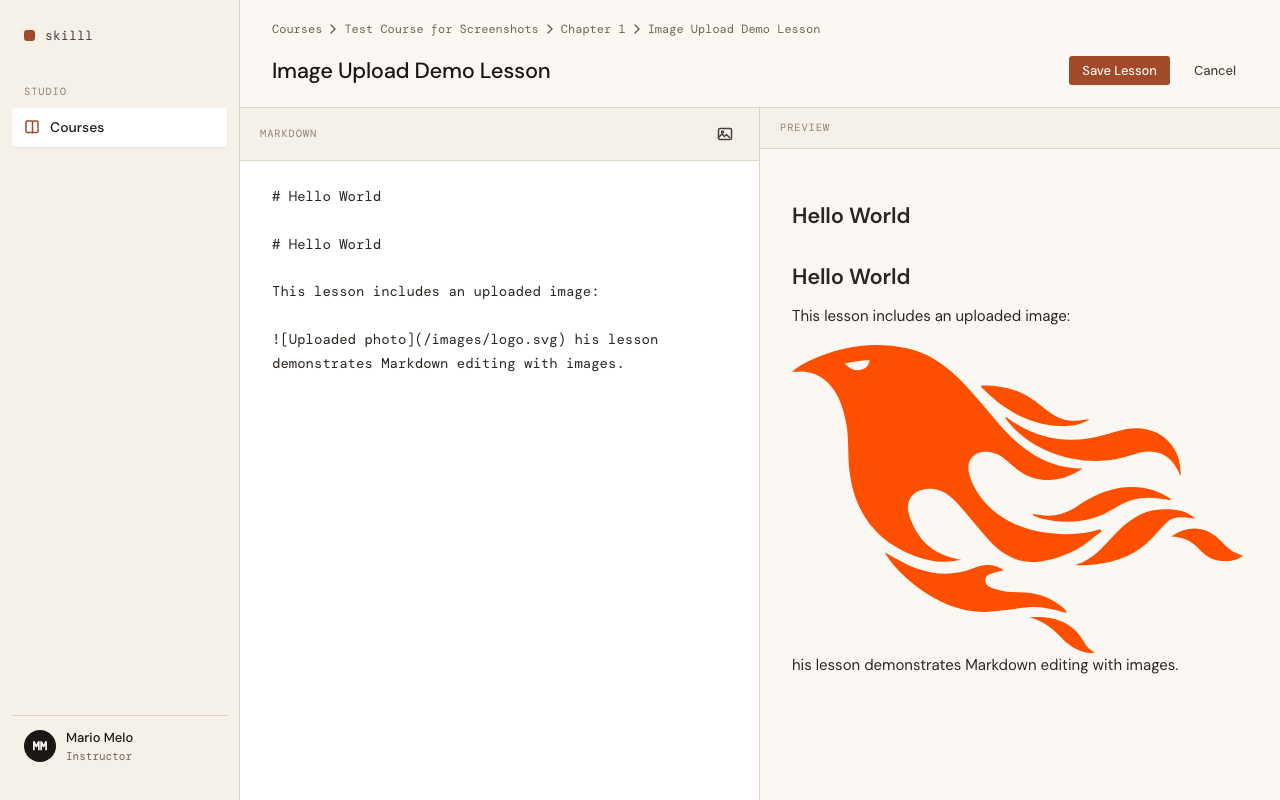
The uploaded image renders live in the preview pane. The `` Markdown was inserted at the cursor position.
Acceptance criteria
- Click an image toolbar button in the lesson editor to open a file picker
- Select a JPG, PNG, GIF, or WebP file up to 5 MB
- See the uploaded image inserted as Markdown
at the cursor position - Show a live status bar during upload with spinner and "Uploading image…"
- On success: green bar with checkmark, auto-dismiss after 5 seconds
- On failure: red bar with error message, auto-dismiss after 8 seconds
- Reject files exceeding 5 MB or with unsupported types, with clear error messages
- Upload images server-side to Backblaze B2 and return a public URL
- Restrict uploads to authenticated course authors
Key decisions
LiveComponent for upload lifecycle — The guideline says to avoid LiveComponents unless there’s a strong need. Image upload is one of those cases: it needs its own allow_upload, handle_progress, and consume_uploaded_entries lifecycle, plus internal error and validation state. A function component can’t own this. The component communicates results to the parent via send(self(), ...) messages.
Status bar instead of toast — Initial implementation used a fixed-position toast at bottom-right, but it was invisible during fast uploads and hard to notice. The inline status bar sits directly below the toolbar — exactly where the author is looking — and uses the design system’s semantic colors (moss for success, rust for error) with a smooth collapse animation.
B2 upload via req, not ex_aws — The original conversation mentioned ex_aws for S3 compatibility, but Req was already in the project (Phoenix default). The B2 API is straightforward: authorize → get upload URL → PUT with SHA1 header. Three Req calls, no extra dependency.
Auto-upload, no submit button — auto_upload: true means the file starts uploading the moment it’s selected. There’s no “Upload” button — the author picks the file and the system handles the rest. This matches the expectation that “inserting an image” is a single action, not a two-step process.
Next up: PBI 0020 — Enroll in a Free Course (Student self-enrollment, Enrollment record, access control).